Roots and WP Packages are independent open source projects, supported only by developers like you. We’ve been improving the WordPress developer experience since 2011, and your support keeps it independent.
Deploying Trellis to DigitalOcean
DigitalOcean is a cloud infrastructure provider that offers virtual servers (droplets) that can handle most normal WordPress sites when provisioned with Trellis.
To provision a server, Trellis requires a server running a bare/stock version of Ubuntu 24.04 LTS.
ℹ️ If you signup for DigitalOcean through the Roots referral link you will receive a free $200 in credit for 2 months, and you help cover the costs of our hosting.
Creating a new server
Trellis CLI comes with a trellis server create command to automatically create and provision a server for a specified environment:
$ trellis server create production
This command requires a DigitalOcean personal access token.
If the DIGITALOCEAN_ACCESS_TOKEN environment variable is not set, the command will prompt for one.
DigitalOcean is the default provider. You can also set it explicitly with the --provider flag or in your trellis.cli.yml:
server:
  provider: digitalocean
Quick start (region and size will be prompted)
$ trellis server create production
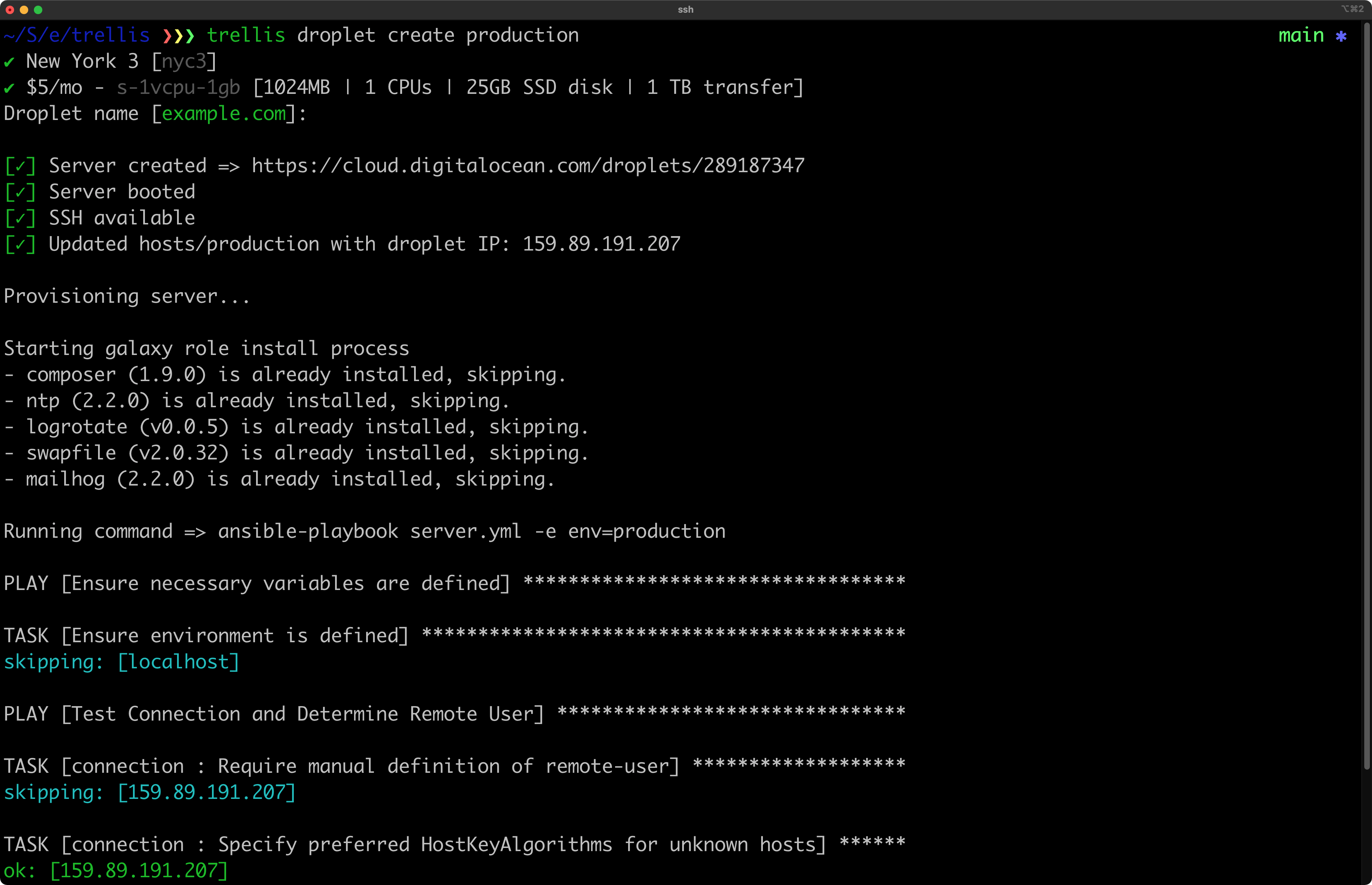
The remote server playbook will run and provision your server with PHP, Nginx, and everything else included in Trellis.
Additional options
The command help file can be accessed by passing the --help flag:
$ trellis server create --help
trellis server create --help
Usage: trellis server create [options] ENVIRONMENT

Creates a server on a cloud provider for the environment specified.

Only remote servers (for staging and production) are currently supported.

This command requires a DigitalOcean personal access token.
Link: https://cloud.digitalocean.com/account/api/tokens/new

If the DIGITALOCEAN_ACCESS_TOKEN environment variable is not set, the command
will prompt for one.

Create a production server (region and size will be prompted):

  $ trellis server create production

Create a 1gb server in the nyc3 region:

  $ trellis server create --region=nyc3 --size=s-1vcpu-1gb production

Create a server but skip provisioning:

  $ trellis server create --skip-provision production

Arguments:
  ENVIRONMENT Name of environment (ie: production)

Options:
      --provider        Cloud provider (digitalocean, hetzner)
      --region          Region to create the server in
      --image           (default: ubuntu-24-04-x64) Server image (ie: Linux distribution)
      --size            Server size/type
      --skip-provision  Skip provision after server is created
      --ssh-key         Path to SSH public key to be added on the server
  -h, --help            show this help
Changes made after running the command
After creating a new server, your local project will have a modified hosts file for the environment that you provisioned:
[production]
-your_server_hostname
+159.89.191.207

[web]
-your_server_hostname
+159.89.191.207
Deploying
Once your server is provisioned you’ll want to perform the first deploy. If you try to visit your site before deploying you’ll see a server 500 error.
$ trellis deploy production
After the first deploy is done, you can now either install WordPress by visiting the site or even import an existing database.
Last updated

Getting Started
The Basics
Digging Deeper
Troubleshooting
Extensions
Sponsors




Roots is an independent open source org, supported only by developers like you. Become a sponsor.