Roots is an independent open source org, supported only by developers like you. We’ve been improving the WordPress developer experience since 2011, and your support keeps it independent.
How to Use blade-icons with Sage
The blade-icons package allows you to easily use SVG's in your Blade views.
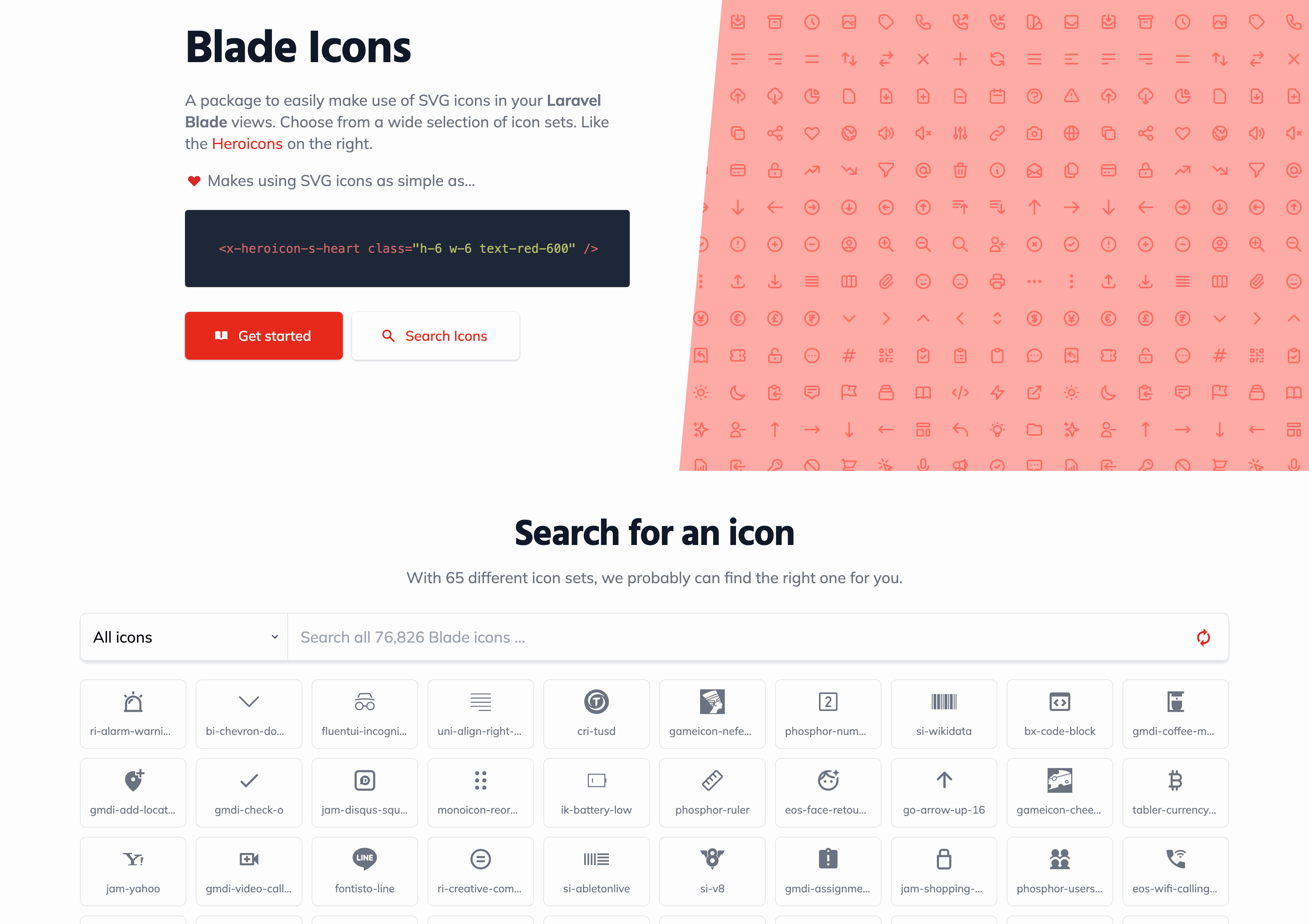
Besides being able to use your own SVG's, you can also add one of the many third party icon sets, such as:
Installation
From the same directory where you've installed Acorn (typically your site root or your Sage theme folder), add blade-icons as a Composer dependency:
$ composer require blade-ui-kit/blade-icons
Then publish the configuration file:
$ wp acorn vendor:publish --tag=blade-icons
Configuration
From the published config/blade-icons.php file, we recommend setting the default set to point to your theme directory:
<?php

return [
    'sets' => [
        'default' => [
            'path' => 'web/app/themes/sage/resources/images/icons', # Relative path to the new directory
            'prefix' => 'icon',
        ],
    ],
];
Adding icons
Add a new directory inside resources/images/ named icons/ and place your SVG icons in this directory.
Using icons in Blade views
From your Blade views you can now use the provided Blade component, or the @svg directive:
<x-icon-example-icon />

@svg('example-icon')
Adding icon sets
blade-icons supports a lot of different icon sets through packages made through the community. The Blade icons search allows you to quickly find a new icon to use in your project.
To add aditional icon sets, require them as Composer dependencies the same as you did for the blade-icons package. In this example, we'll add the blade-heroicons package:
$ composer require blade-ui-kit/blade-heroicons
Now Heroicons can be referenced in any of the supported methods from inside your Blade views:
<x-heroicon-s-menu />

@svg('heroicon-s-menu')

{{ svg('heroicon-s-menu) }}
Caching icons in production
It's recommended to enable icon caching to optimize performance by running wp acorn icons:cache during deployment.
If you are using Trellis, modify the deploy_build_after hook within your deploy-hooks/build-after.yml file:
- name: Cache Blade UI Icons
  command: wp acorn icons:cache
  args:
    chdir: "{{ deploy_helper.new_release_path }}"
Additional information
The blade-icons README covers how to pass attributes, set default classes, and more.
Last updated


Getting Started
Digging Deeper
Sponsors




Roots is an independent open source org, supported only by developers like you. Become a sponsor.