# Deploying Trellis to DigitalOcean
[DigitalOcean](https://roots.io/r/digitalocean) is a cloud infrastructure provider that offers virtual servers (droplets) that can handle most normal WordPress sites when provisioned with Trellis.
To provision a server, Trellis requires a server running a bare/stock version of Ubuntu 24.04 LTS.
::: tip
ℹ️ If you [signup for DigitalOcean](https://roots.io/r/digitalocean) through the Roots referral link you will receive a free $200 in credit for 2 months, and you help cover the costs of our hosting.
:::
## Creating a new server
Trellis CLI comes with a `trellis server create` command to automatically create and provision a server for a specified environment:
```shell
$ trellis server create production
```
::: warning
This command requires a [DigitalOcean personal access token](https://cloud.digitalocean.com/account/api/tokens/new).
:::
If the `DIGITALOCEAN_ACCESS_TOKEN` environment variable is not set, the command will prompt for one.
DigitalOcean is the default provider. You can also set it explicitly with the `--provider` flag or in your `trellis.cli.yml`:
```yaml
server:
provider: digitalocean
```
### Quick start (region and size will be prompted)
```shell
$ trellis server create production
```
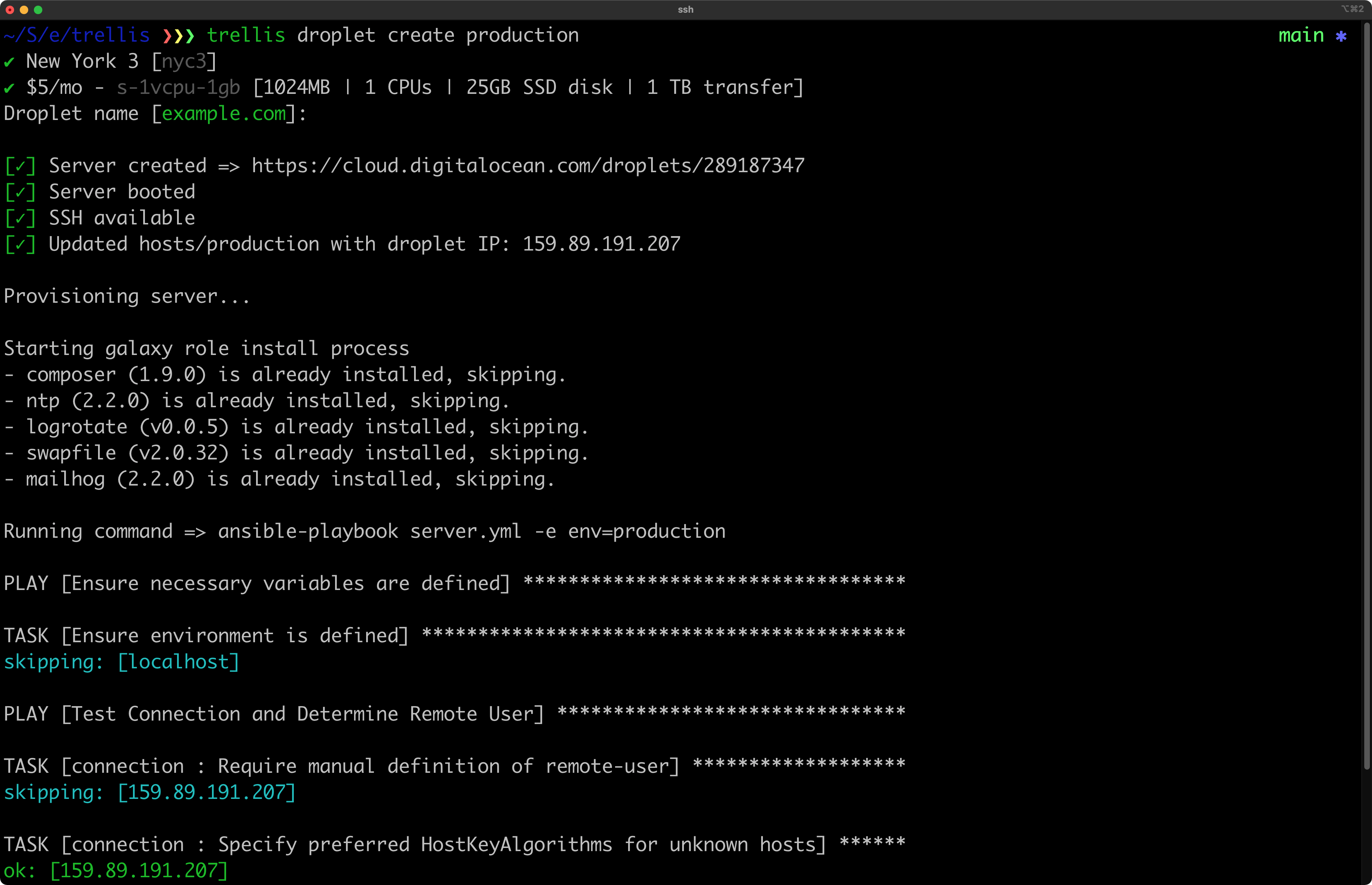
The remote server playbook will run and provision your server with PHP, Nginx, and everything else included in Trellis.
### Additional options
The command help file can be accessed by passing the `--help` flag:
```shell
$ trellis server create --help
```
trellis server create --help
```plaintext
Usage: trellis server create [options] ENVIRONMENT
Creates a server on a cloud provider for the environment specified.
Only remote servers (for staging and production) are currently supported.
This command requires a DigitalOcean personal access token.
Link: https://cloud.digitalocean.com/account/api/tokens/new
If the DIGITALOCEAN_ACCESS_TOKEN environment variable is not set, the command
will prompt for one.
Create a production server (region and size will be prompted):
$ trellis server create production
Create a 1gb server in the nyc3 region:
$ trellis server create --region=nyc3 --size=s-1vcpu-1gb production
Create a server but skip provisioning:
$ trellis server create --skip-provision production
Arguments:
ENVIRONMENT Name of environment (ie: production)
Options:
--provider Cloud provider (digitalocean, hetzner)
--region Region to create the server in
--image (default: ubuntu-24-04-x64) Server image (ie: Linux distribution)
--size Server size/type
--skip-provision Skip provision after server is created
--ssh-key Path to SSH public key to be added on the server
-h, --help show this help
```
## Changes made after running the command
After creating a new server, your local project will have a modified hosts file for the environment that you provisioned:
```diff
[production]
-your_server_hostname
+159.89.191.207
[web]
-your_server_hostname
+159.89.191.207
```
## Deploying
Once your server is provisioned you’ll want to perform the first deploy. If you try to visit your site before deploying you’ll see a server 500 error.
```shell
$ trellis deploy production
```
After the first deploy is done, you can now either install WordPress by visiting the site or even import an existing database.
## Performance
If you enable the [FastCGI caching in Trellis](/trellis/docs/fastcgi-caching/) then you’ll be able to squeeze quite a bit of performance out of a small DigitalOcean droplet.
View on loader.io